 峤咚笔记
峤咚笔记把DeepSeek接入WPS,高效办公(保姆级教学)
DeepSeek与Word的梦幻联动,将为你开启高效办公的新篇章!熟悉的Word界面中,只需轻点鼠标,就能召唤出强大的DeepSeek,让它为你快速检索信息、精准翻译文本、智能生成内容…… 告别在不同软件间来回切换的繁琐,告别低效的信息获取方式,让办公效率飞起来!
效果演示
按照文本教程完成操作后,Word的选项卡中将会出现DeepSeek的生成图标,选中文本并点击生成,即可实现模型回复!例如,我们想要将一段中文文本翻译成英文:
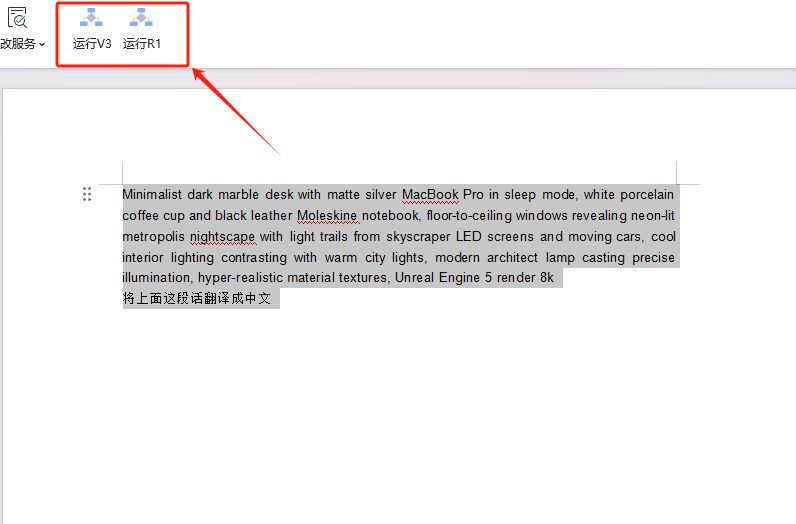
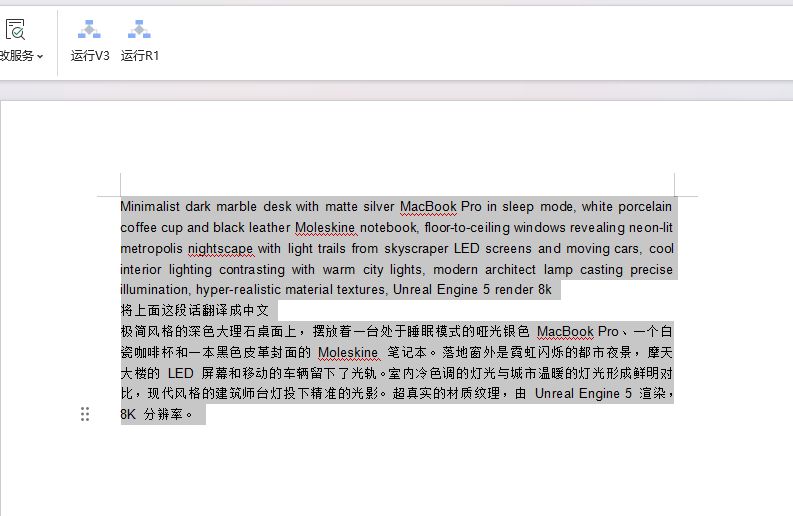
接下来我将详细介绍,如何实现DeepSeek与Word的结合。
Office AI助手接入方法
设置WPS信任
打开WPS-创建一个文档-点左上角的文件-选项-信任中心
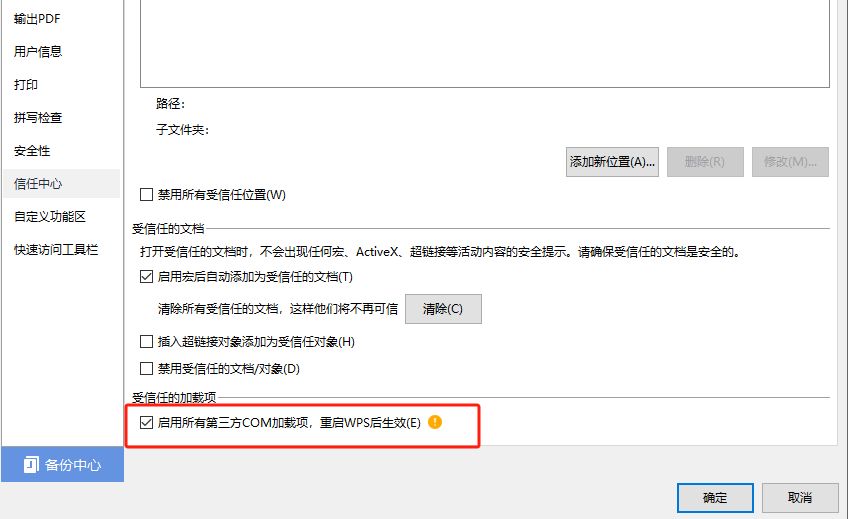
启用所有第三方COM加载项,重启WPS后生效(E),然后点确定
安装office Ai插件
下载officeAi助手:https://www.haiyingsec.com/static/introductions/officeai/introduction.html
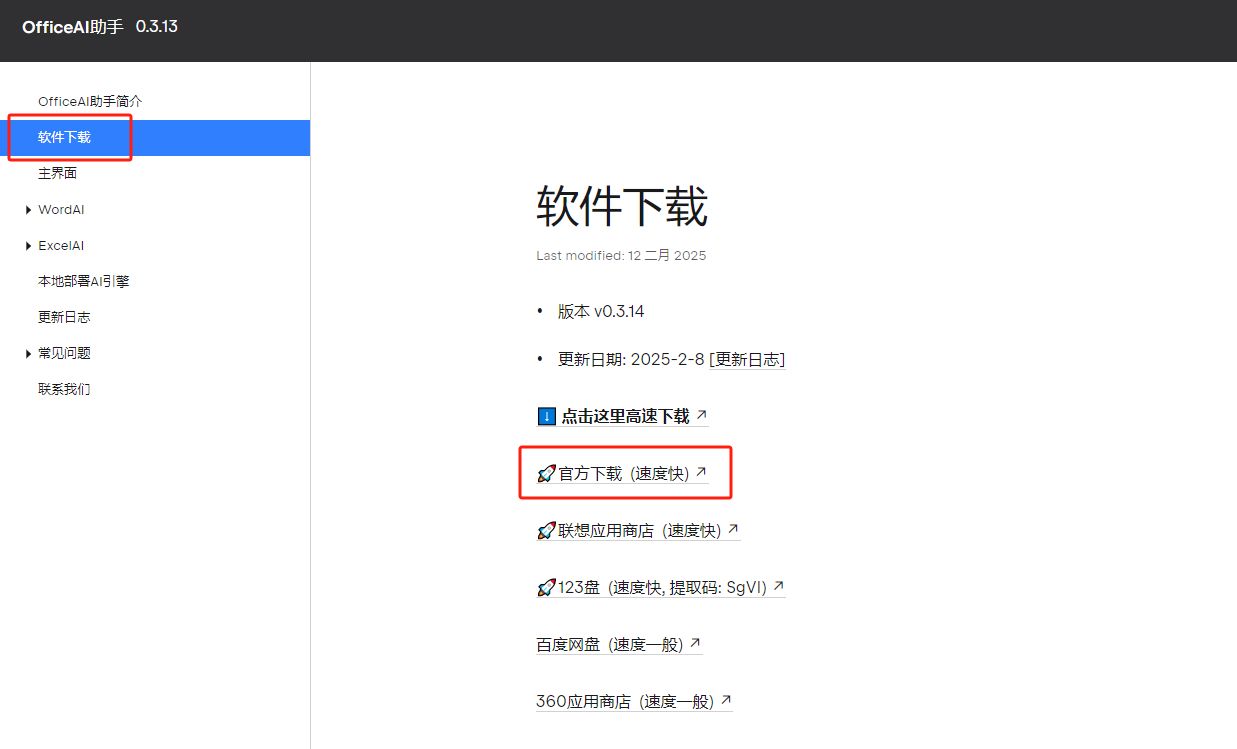
下载好后进行安装,安装前要先把WPS关闭
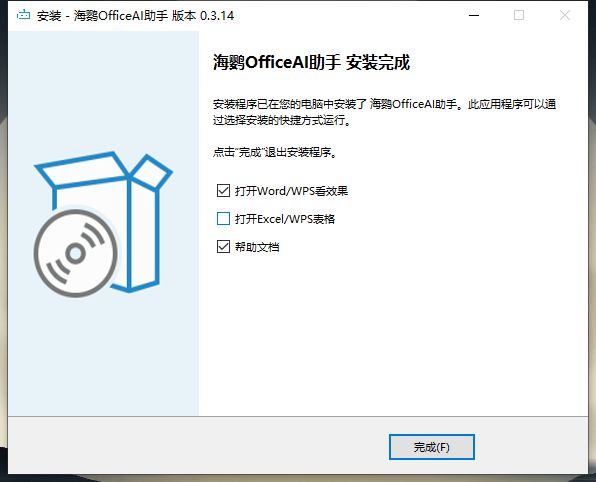
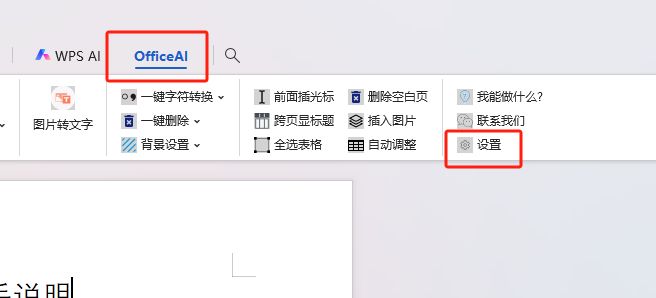
点击完成后就会自动打开WPS,上方就会出现officeAI,登录-点击设置
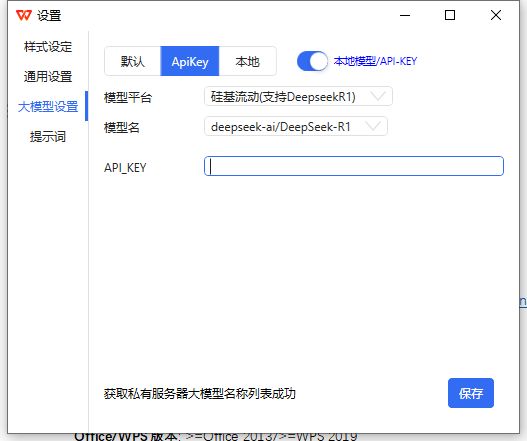
平台选择硅基流动的R1,然后模型选择R1,这里还需要添加一个API_key
获取API Key
登录硅基流动:https://cloud.siliconflow.cn/i/FSIqvgQd
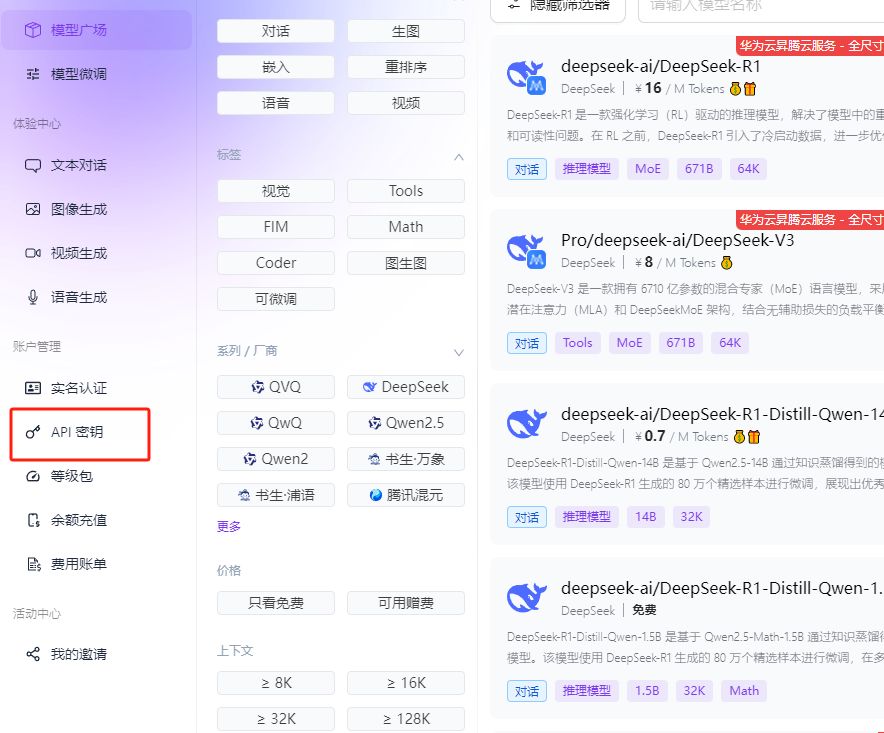
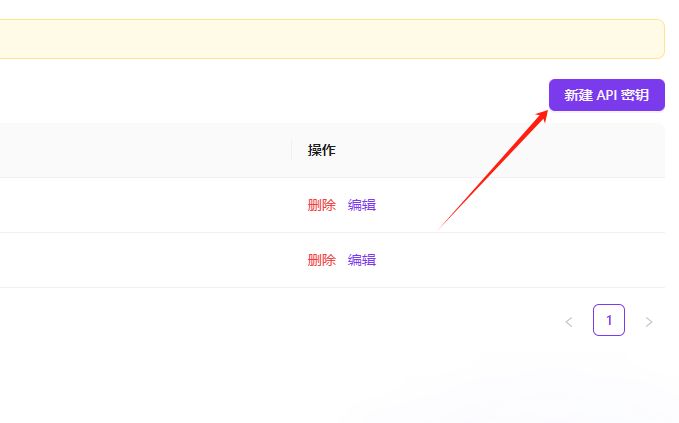
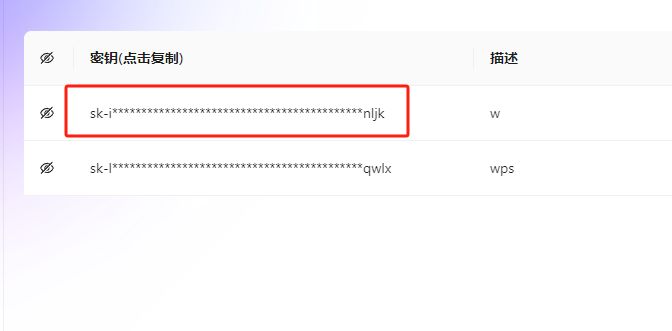
选择密钥-新建密钥-随便填写-复制密钥到WPS-保存
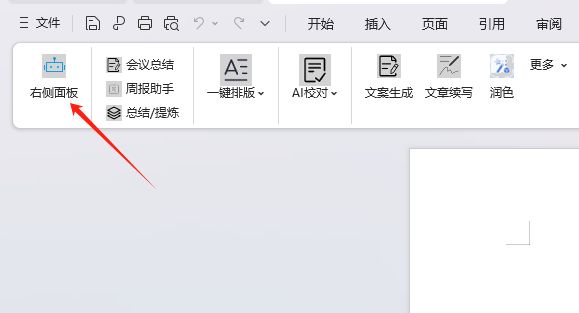
这样就可以在WPS里使用SeepseekR1了
VBA插件开发方法
设置WPS信任
跟上面的方法一样,开始之前还需要先设置一下信任问题
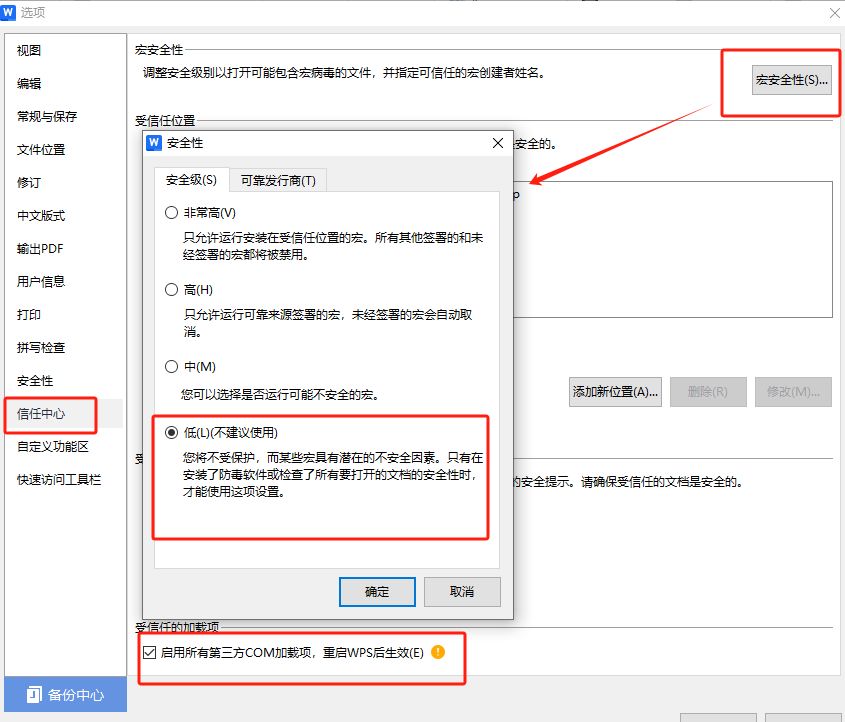
设置好后记得点确定
配置WPS
安装wps.vba,下载地址:https://pan.quark.cn/s/f0e6145a1ab0
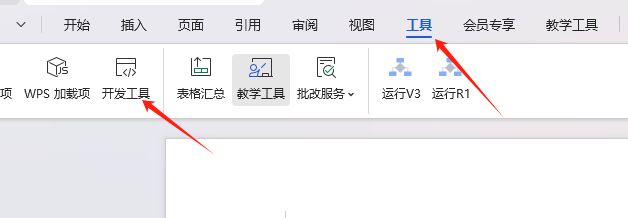
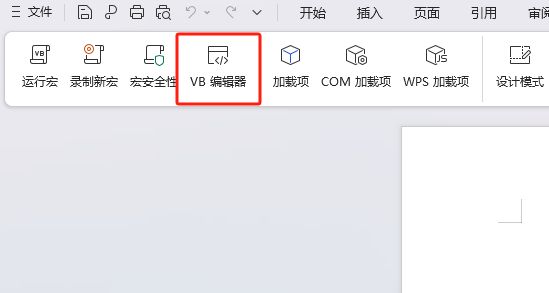
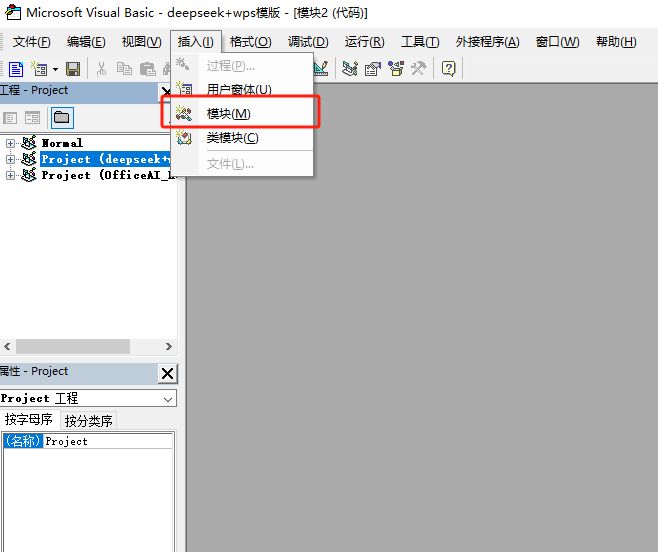
点击工具-开发工具-点击VB 编辑器
DeepSeek-V3代码:
Function CallDeepSeekAPI(api_key As String, inputText As String) As String
Dim API As String
Dim SendTxt As String
Dim Http As Object
Dim status_code As Integer
Dim response As String
API = "https://api.siliconflow.cn/v1/chat/completions"
SendTxt = "{""model"": ""deepseek-ai/DeepSeek-V3"", ""messages"": [{""role"":""system"", ""content"":""You are a Word assistant""}, {""role"":""user"", ""content"":""" & inputText & """}], ""stream"": false}"
Set Http = CreateObject("MSXML2.XMLHTTP")
With Http
.Open "POST", API, False
.setRequestHeader "Content-Type", "application/json"
.setRequestHeader "Authorization", "Bearer " & api_key
.send SendTxt
status_code = .Status
response = .responseText
End With
‘ 弹出窗口显示 API 响应(调试用)
‘ MsgBox "API Response: " & response, vbInformation, "Debug Info"
If status_code = 200 Then
CallDeepSeekAPI = response
Else
CallDeepSeekAPI = "Error: " & status_code & " – " & response
End If
Set Http = Nothing
End Function
Sub DeepSeekV3()
Dim api_key As String
Dim inputText As String
Dim response As String
Dim regex As Object
Dim matches As Object
Dim originalSelection As Object
api_key = "替换为你的api key"
If api_key = "" Then
MsgBox "Please enter the API key."
Exit Sub
ElseIf Selection.Type <> wdSelectionNormal Then
MsgBox "Please select text."
Exit Sub
End If
‘ 保存原始选中的文本
Set originalSelection = Selection.Range.Duplicate
inputText = Replace(Replace(Replace(Replace(Replace(Selection.text, "", "\"), vbCrLf, ""), vbCr, ""), vbLf, ""), Chr(34), """")
response = CallDeepSeekAPI(api_key, inputText)
If Left(response, 5) <> "Error" Then
Set regex = CreateObject("VBScript.RegExp")
With regex
.Global = True
.MultiLine = True
.IgnoreCase = False
.Pattern = """content"":""(.*?)"""
End With
Set matches = regex.Execute(response)
If matches.Count > 0 Then
response = matches(0).SubMatches(0)
response = Replace(Replace(response, """", Chr(34)), """", Chr(34))
‘ 取消选中原始文本
Selection.Collapse Direction:=wdCollapseEnd
‘ 将内容插入到选中文字的下一行
Selection.TypeParagraph ‘ 插入新行
Selection.TypeText text:=response
‘ 将光标移回原来选中文本的末尾
originalSelection.Select
Else
MsgBox "Failed to parse API response.", vbExclamation
End If
Else
MsgBox response, vbCritical
End If
End Sub
DeepSeek-R1代码:
Function CallDeepSeekAPI(api_key As String, inputText As String) As String
Dim API As String
Dim SendTxt As String
Dim Http As Object
Dim status_code As Integer
Dim response As String
API = "https://api.siliconflow.cn/v1/chat/completions"
SendTxt = "{""model"": ""deepseek-ai/DeepSeek-R1"", ""messages"": [{""role"":""system"", ""content"":""You are a Word assistant""}, {""role"":""user"", ""content"":""" & inputText & """}], ""stream"": false}"
Set Http = CreateObject("MSXML2.XMLHTTP")
With Http
.Open "POST", API, False
.setRequestHeader "Content-Type", "application/json"
.setRequestHeader "Authorization", "Bearer " & api_key
.send SendTxt
status_code = .Status
response = .responseText
End With
‘ 弹出窗口显示 API 响应(调试用)
‘ MsgBox "API Response: " & response, vbInformation, "Debug Info"
If status_code = 200 Then
CallDeepSeekAPI = response
Else
CallDeepSeekAPI = "Error: " & status_code & " – " & response
End If
Set Http = Nothing
End Function
Sub DeepSeekR1()
Dim api_key As String
Dim inputText As String
Dim response As String
Dim regex As Object
Dim matches As Object
Dim originalSelection As Object
api_key = "替换为你的api key"
If api_key = "" Then
MsgBox "Please enter the API key."
Exit Sub
ElseIf Selection.Type <> wdSelectionNormal Then
MsgBox "Please select text."
Exit Sub
End If
‘ 保存原始选中的文本
Set originalSelection = Selection.Range.Duplicate
inputText = Replace(Replace(Replace(Replace(Replace(Selection.text, "", "\"), vbCrLf, ""), vbCr, ""), vbLf, ""), Chr(34), """")
response = CallDeepSeekAPI(api_key, inputText)
If Left(response, 5) <> "Error" Then
Set regex = CreateObject("VBScript.RegExp")
With regex
.Global = True
.MultiLine = True
.IgnoreCase = False
.Pattern = """content"":""(.*?)"""
End With
Set matches = regex.Execute(response)
If matches.Count > 0 Then
response = matches(0).SubMatches(0)
response = Replace(Replace(response, """", Chr(34)), """", Chr(34))
‘ 取消选中原始文本
Selection.Collapse Direction:=wdCollapseEnd
‘ 将内容插入到选中文字的下一行
Selection.TypeParagraph ‘ 插入新行
Selection.TypeText text:=response
‘ 将光标移回原来选中文本的末尾
originalSelection.Select
Else
MsgBox "Failed to parse API response.", vbExclamation
End If
Else
MsgBox response, vbCritical
End If
End Sub
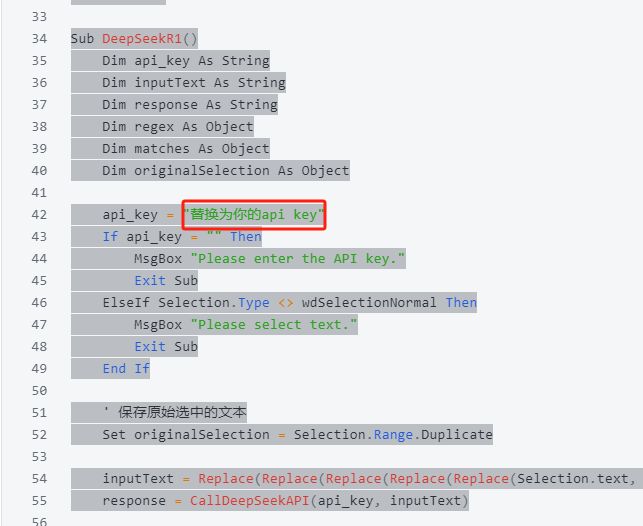
选择V3或者R1的代码复制到模块中,记得把代码里面的API key替换成自己的(也就是硅基流动里面复制的)
点击 文件 -> 选项 -> 工具
选中,点击新建组,右键新建组,点击重命名,将其命名为"DeepSeek"
选择DeepSeek(自定义),在左侧命令中选择"宏"
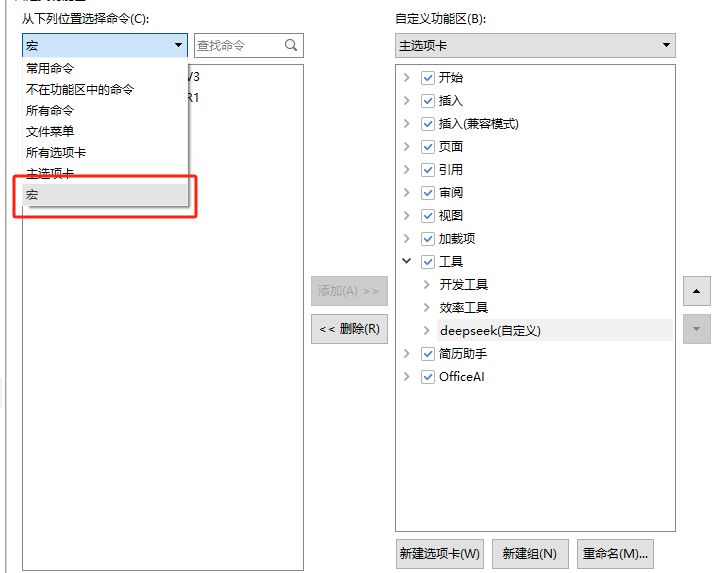
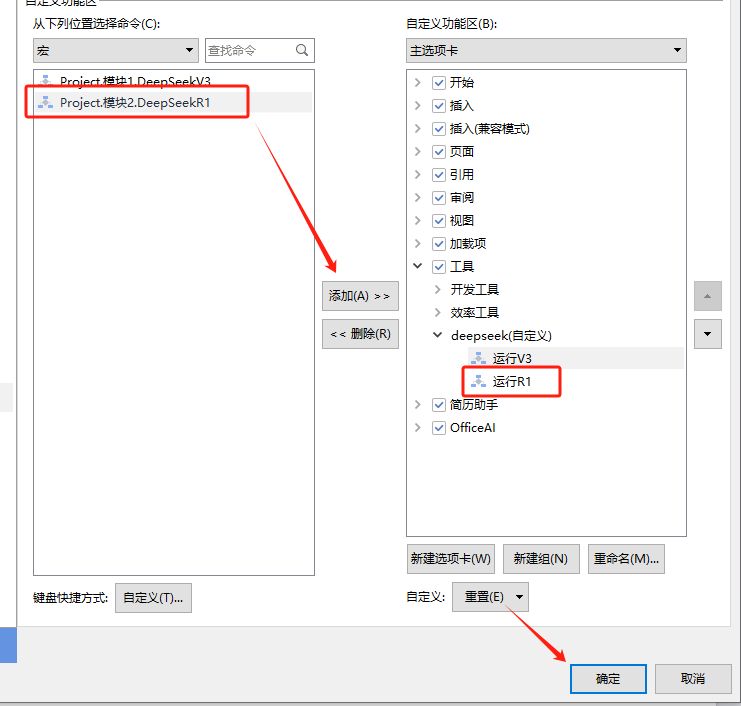
找到并选中"DeepSeekR1",点击添加,点击重命名,重命名为"运行R1",点击确定
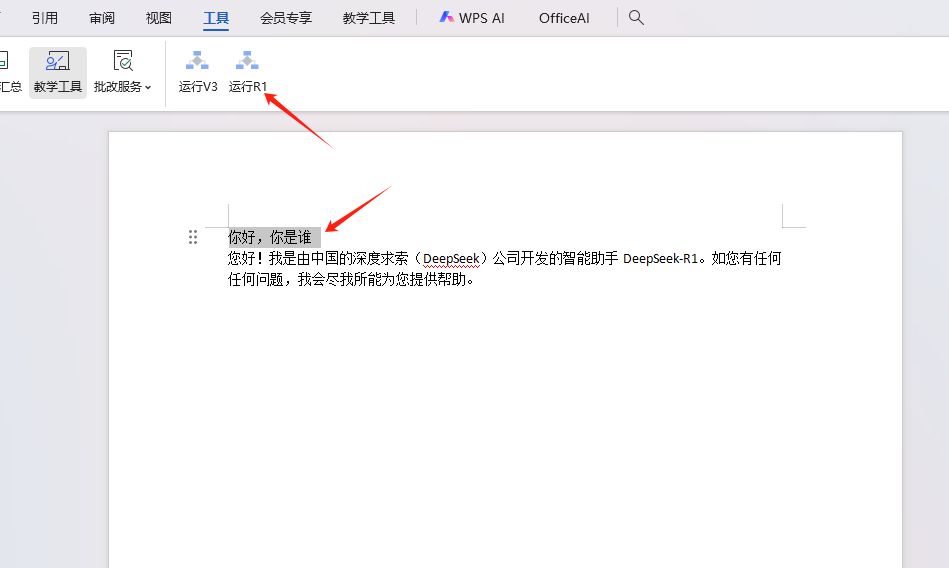
在文档中输入问题,并选取,然后点击运行,稍等一会,就会成功了
将你的文档另存为 Wps 模板 (.dotm):
点击"文件" → "另存为"
选择保存类型为"Microsoft Word 带宏的模板文件 (*.dotm)"
保存到 Wps 的模板文件夹(通常是 C:Users用户名AppDataRoamingkingsoftwpsstartup,如C:UsersAdministratorAppDataRoamingkingsoftwpsstartup)
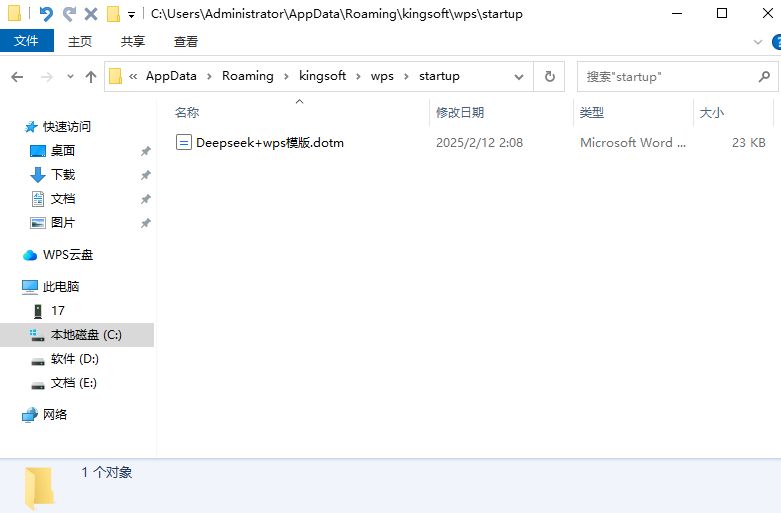
这样每次打开 Wps 时,宏就会自动可用
 峤咚笔记
峤咚笔记